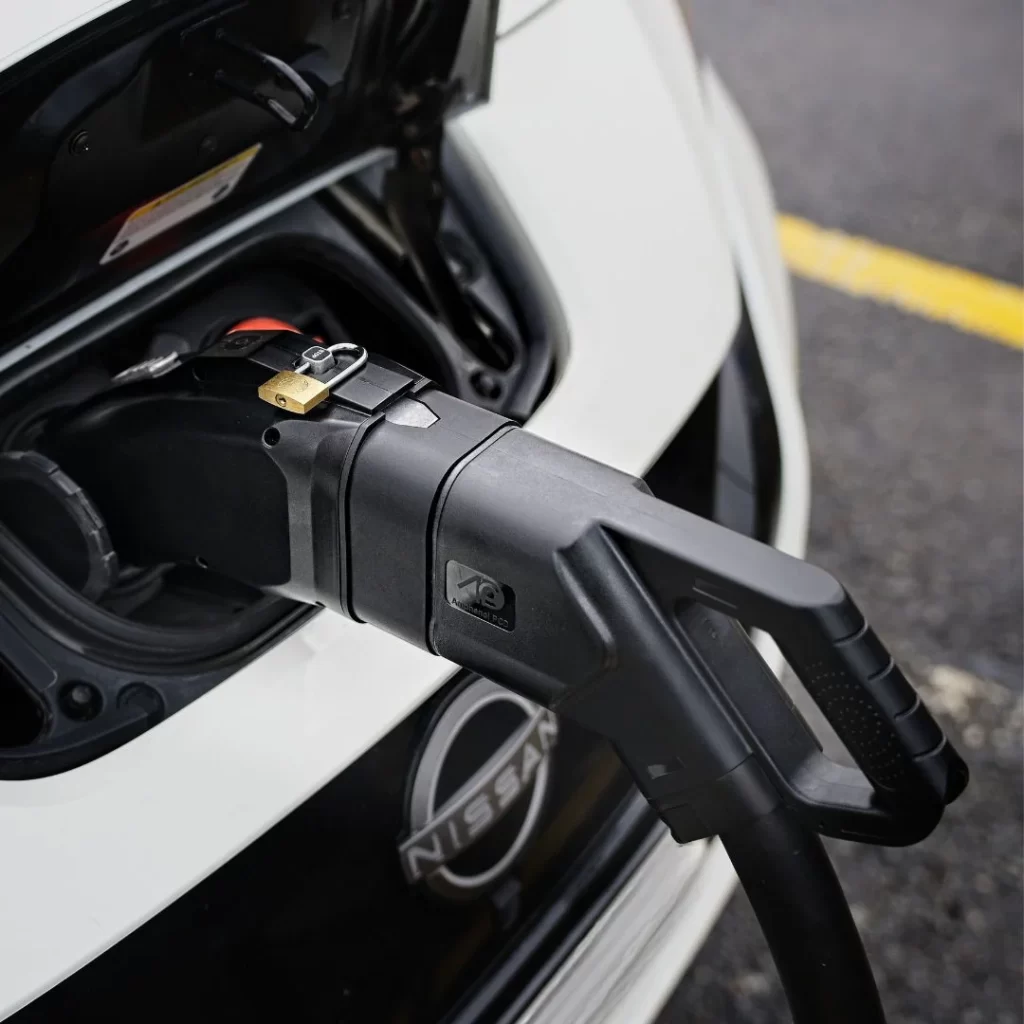
Updating the Longood CCS to CHAdeMO adapter firmware is a simple USB-based process that can improve compatibility with CCS fast chargers and help solve station-specific charging problems. The latest firmware for the Longood adapter is supported by an active open source community, and the same solution is also used by the manufacturer in the adapters it currently ships.
In most cases, you only need to update the adapter when a newer firmware file is available from Autonlaturit.com, or when a charging station compatibility issue has been identified. We always notify customers by email when a new firmware update is available.
The most important thing is to use the correct firmware file, place it in the correct location on the supplied USB drive, and power the adapter correctly during the update. This guide explains when firmware updates matter, how to install one, and what to do if a charger still does not work afterwards.
Why does the Longood CCS to CHAdeMO adapter need firmware updates?
A CCS to CHAdeMO adapter is not just a physical plug converter. It contains electronics that allow a CHAdeMO-equipped vehicle to communicate with a CCS fast-charging station.
That communication matters because CCS chargers, CHAdeMO vehicles and charging networks do not all behave exactly the same way. Charging station operators may also update their own software over time. Sometimes this can change how the station communicates during the charging handshake.
Firmware updates allow the adapter software to improve compatibility, fix specific charging-station issues and refine how the adapter behaves in real-world use.
The Longood CCS to CHAdeMO adapter is supported by an active open source firmware project maintained around the device. This means the adapter software can continue to develop based on user experiences and compatibility with different cars and CCS chargers. It also makes future updates less dependent on the original manufacturer alone.
That is why firmware support is an important part of owning a CCS to CHAdeMO adapter. The adapter is not only a piece of hardware. It is also a supported charging solution that may need software updates as charging networks continue to evolve.
When should you update the adapter firmware?
You should update the Longood CCS to CHAdeMO adapter firmware when a new update is available from Autonlaturit.com. We always send an email notification when a new firmware file is released.
If your adapter is new, it may already be delivered with the latest open source update. In that case, you do not need to update it again unless a newer version becomes available.
A firmware update may be useful if:
- a specific CCS charging station fails to start charging
- a charging network has recently updated its own charger software
- the adapter works at some chargers but repeatedly fails at one particular charger model or location
- a new open source firmware release becomes available
- you are preparing for a long trip and want to make sure your adapter is up to date
However, not every failed charging session means the firmware is outdated.
Charging can also fail because the adapter is not fully seated in the vehicle’s CHAdeMO inlet, the CCS plug is not properly inserted into the adapter, the charging station has timed out during the handshake, or the adapter’s internal battery is depleted.
Before assuming you need a firmware update, it is worth checking the basics first.
What do you need before updating the firmware?
Before starting the update, make sure you have everything ready.
You need:
- the correct firmware file from Autonlaturit.com
- the supplied USB thumb drive
- the supplied multi-cable
- a USB power source with 5V output, such as a USB wall charger or power bank
- access to the adapter’s USB-C input
The firmware file must be named exactly:
My407ccs2chademo.bin
Do not rename the file. Do not let your computer add a duplicate suffix such as “(1)”. Do not place the file inside a folder.
The file must be copied to the root directory of the supplied USB thumb drive. In simple terms, that means the file should be visible immediately when you open the USB drive, not hidden inside any subfolder.
This small detail matters. If the file name or file location is wrong, the adapter may not detect the update.
How do you install the Longood CCS to CHAdeMO firmware update?
Follow these steps carefully.
Step 1: Get the correct firmware file
Visit Autonlaturit.com to obtain the correct firmware file for your Longood CCS to CHAdeMO adapter.
Use the firmware file provided through the correct download or support channel. Even though the firmware is open source, using the correct file from Autonlaturit.com helps ensure you install the recommended version for your adapter.
Step 2: Copy the firmware file to the USB thumb drive
Insert the supplied USB thumb drive into your computer.
Copy the firmware file to the root directory of the USB drive.
The file name must be exactly:
My407ccs2chademo.bin
Before removing the USB drive, check two things:
- the file is not inside a folder
- the file name has not been changed by your computer
For example, a file called My407ccs2chademo (1).bin is not the same file name and should be corrected before you continue.
Step 3: Connect the USB drive to the supplied multi-cable
Insert the USB thumb drive into the USB-A receptacle on the supplied multi-cable.
This is the cable supplied for powering the adapter and transferring the update file.
Step 4: Connect the cable to a 5V USB power source
Connect the other USB-A end of the cable to a 5V USB power source.
This can be a USB wall charger or a power bank that provides 5V output.
Do not attempt to perform the firmware update while fast charging the vehicle. The update is a separate process and should be done calmly before you need the adapter at a charging station.
Step 5: Connect the USB-C end to the adapter
Connect the USB-C male end of the supplied cable to the adapter’s USB-C input.
Once connected, the adapter should read the firmware file from the USB drive.
You should see the light on the USB drive blink several times. This indicates that the update process is taking place.
Step 6: Wait until the blinking stops
Do not disconnect the cable while the USB drive light is still blinking.
When the blinking stops, the firmware update is complete.
You can then disconnect the USB drive and cable.
Step 7: Test the adapter before a long trip
After updating the firmware, it is a good idea to test the adapter at a nearby compatible CCS fast charger before relying on it for a long journey.
This is especially important before road trips, holidays or routes where charging options are limited.
A successful test near home gives you confidence that the adapter, vehicle and update process are working as expected.
What are the most common firmware update mistakes?
Most update problems come from small file or connection mistakes.
The most common mistakes are:
- placing the firmware file inside a folder on the USB drive
- using the wrong file name
- allowing the computer to rename the file with a “(1)” suffix
- using the wrong USB drive or cable
- disconnecting the USB cable before the blinking stops
- using an incorrect firmware file
- assuming every charging problem is a firmware problem
The file name and file location are especially important. The adapter is looking for a specific file in a specific place. If it cannot find it, the update may not start.
What if charging still does not work after the update?
If the adapter still does not start charging after the firmware update, the next step is to collect useful information about the failed charging session.
Before contacting support, write down:
- the charging station operator
- the charger brand or model, if visible
- the exact location of the charger
- the error message shown on the charger screen or in the charging app
- your vehicle model and battery size
- the vehicle’s state of charge
- the order in which you connected the adapter, cable and charger session
- whether the adapter LED blinked, stayed on or turned off
Photos can be very helpful. If possible, take a photo of the charging station, the charger screen and any visible error message.
This information helps support understand whether the issue is caused by connection order, station timeout, charger software, vehicle state of charge, adapter battery level or firmware compatibility.
How can log files help solve charging station compatibility issues?
The Longood adapter can be used with a supplied debug cable to collect log data from a failed charging session.
This can be useful when the adapter does not work with a particular charging pedestal or charger model. The log data can help developers understand exactly what happened during the communication between the charger, the adapter and the vehicle.
In practice, this can speed up the release of a new firmware version if the issue is caused by charging station compatibility.
You do not need to collect log files for every small issue. But if support asks for logs, they can be an important part of solving a specific charging problem.
For detailed information on how to collect log files, send us an email at info@autonlaturit.com. We will provide the necessary instructions and help you gather the information needed for troubleshooting.
Should you update the firmware before a road trip?
If a firmware update is available, it is sensible to install it before a long trip rather than waiting until you are at a charger.
It is also wise to test the adapter near home after the update.
For road trips, firmware is only one part of good preparation. You should also make sure the adapter’s internal battery is charged, bring a USB-C cable or power bank if needed, and plan alternative charging stops along your route.
Even with a well-tested adapter, charging stations can be out of order, occupied, limited by software, or temporarily incompatible. Having a backup charger in your route plan is simply good EV travel practice.
Why does the adapter’s internal battery matter?
The Longood CCS to CHAdeMO adapter contains a built-in controller that manages communication between the CCS charging station and the CHAdeMO vehicle. This controller is powered by the adapter’s internal battery.
The adapter can charge its internal battery automatically during fast charging. It can also be charged through its USB-C input using a USB power source.
Before a long trip, make sure the adapter has enough charge. If the adapter’s red LED does not light at all when you try to start a charging session, the internal battery may be depleted.
In that situation, connect the adapter to a USB-C power source and allow it to receive some charge before attempting to start the session again.
For long journeys, it is practical to keep a USB-C cable, power bank or 12V vehicle socket USB adapter in the car.
Is it safe to update the adapter firmware yourself?
Yes, the firmware update process is designed to be simple, but it should still be done carefully.
Use only the correct firmware file and supplied update accessories. Do not open the adapter, modify it or attempt to repair internal parts. The adapter is high-voltage charging equipment, and there are no user-serviceable parts inside.
You should also avoid using the adapter if it shows visible damage, has been dropped heavily, or has been exposed to conditions that may have damaged the electronics.
Firmware updating should be treated as a normal support procedure, not as a DIY hardware modification.
How often does the Longood adapter need firmware updates?
There is no fixed schedule that applies to every user.
Some owners may use the adapter for a long time without needing another update. Others may receive an update after a specific charging network or charger model changes its software.
Because the Longood adapter is supported by an active open source firmware project, updates can continue based on real-world user experience with different cars and CCS chargers. The manufacturer has also adopted this solution and uses it on new adapters, which supports long-term compatibility even as charging networks continue to change.
The best approach is simple: keep an eye on email notifications from Autonlaturit.com, report repeatable charging issues clearly, and install firmware updates when a new version is announced.
This is one of the reasons seller support matters with CCS to CHAdeMO adapters. You are not only buying the adapter itself. You are also buying access to guidance, troubleshooting and update support if the charging network changes around you.
Bottom line
Updating the Longood CCS to CHAdeMO adapter firmware is usually straightforward: get the correct file from Autonlaturit.com, copy My407ccs2chademo.bin to the root of the supplied USB drive, connect it with the supplied multi-cable and 5V USB power, then wait until the USB drive stops blinking.
Firmware updates help keep the adapter compatible with real-world CCS charging stations as charging networks evolve. The Longood adapter’s open source firmware support is especially valuable because it allows compatibility improvements to continue based on real user experience, without depending only on the original manufacturer.
For the best experience, keep the adapter charged, test it before long trips, plan backup charging stops and contact Autonlaturit.com support if a charger repeatedly fails to start.